Why using EmoGuardinan with Telegram ?
To fully leverage the risk management capabilities of EmoGuardian, we recommend using it in combination with a VPS. For maximum effectiveness, you can restrict access to the VPS using a productivity tool such as FocusMe. Until recently, one limitation of EmoGuardian was the inability to monitor its activity after VPS access had been blocked. This limitation has now been resolved. We are pleased to introduce the EmoGuardian Remote Controller, a free tool available to all EmoGuardian users. This feature allows you to monitor EmoGuardian’s status remotely, even when direct VPS access is restricted. To obtain the EmoGuardian Remote Controller (EmogRemoteTLG), please contact the developer via: Once you get in touch, you will receive an
.ex5 file called EmogRemoteTLG. This file acts as a bot that enables remote monitoring of EmoGuardian.
Installation Instructions
- Install EmogRemoteTLG on the same trading platform where EmoGuardian is running.
- Attach it to a separate chart (do not run it on the same chart as EmoGuardian).
Telegram Setup
To connect EmogRemoteTLG to Telegram, you’ll need to link your Telegram account to the bot. Follow the instructions below: STEP 1: Search for @BotFather in telegram search bar and click on the BotFather name.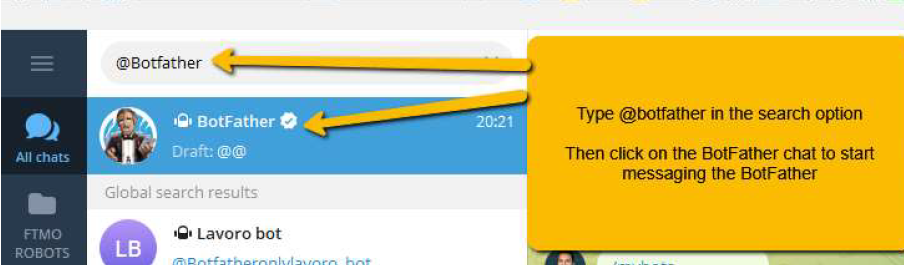 STEP 2: You are now going to “chat” with the BotFather giving him instructions to create a new bot. Type /help to show all options. Then type /newbot to create a new bot.
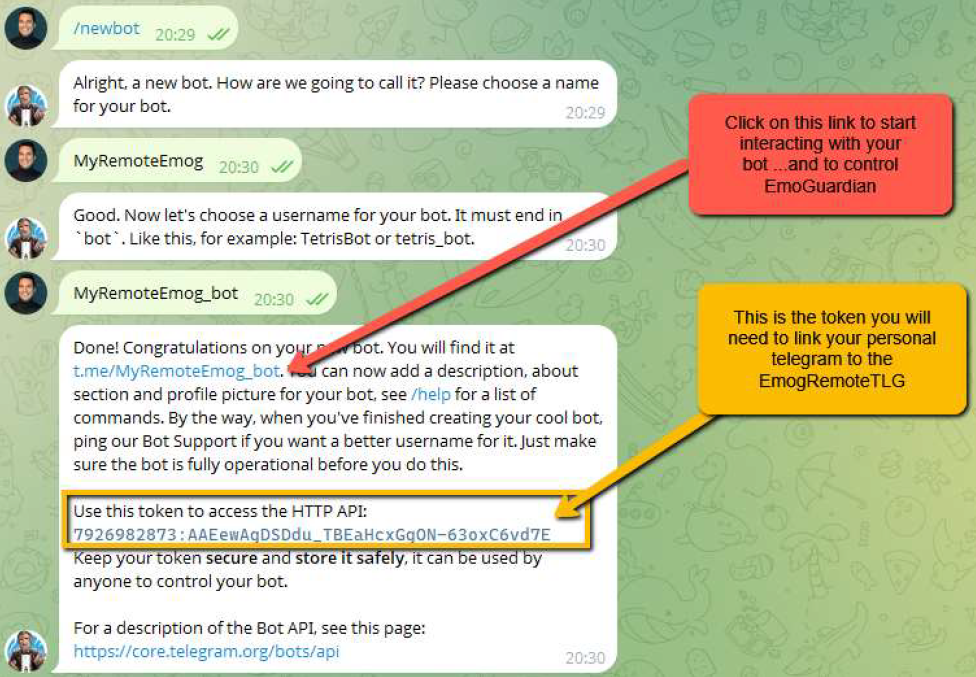
This will be the bot that will act as a remote controller in your personal Telegram and you will connect to the EmogRemoteTLG in MT5. Follow the instructions to create the bot, as in the image below:
STEP 2: You are now going to “chat” with the BotFather giving him instructions to create a new bot. Type /help to show all options. Then type /newbot to create a new bot.
This will be the bot that will act as a remote controller in your personal Telegram and you will connect to the EmogRemoteTLG in MT5. Follow the instructions to create the bot, as in the image below:
CONNECTING THE BOT TO EmogRemoteTLG
You will need to install EmogRemoteTLG to your MT5 in the same platform where EmoGuardian is running (that is on the VPS server, if you are using one). Go to File >>Open Data Folder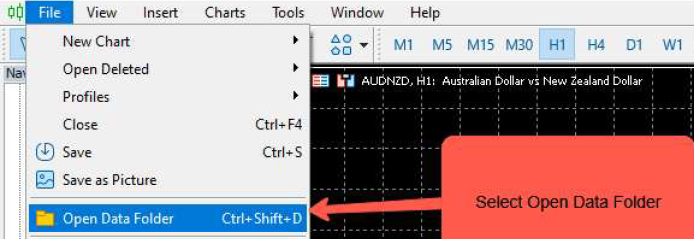 Copy the EmogRemoteTLG.ex5 file in the folder MQL5>>Experts
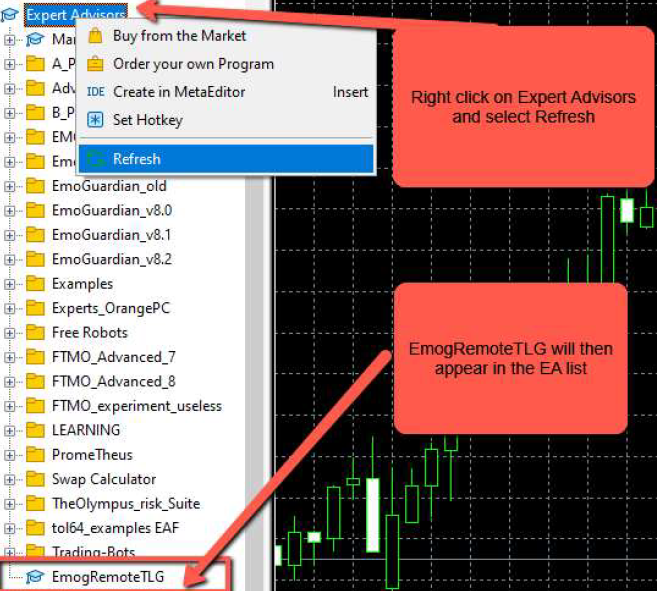
Once done, go back to MT5 main window, right-click on Expert Advisors and select Refresh. EmogRemoteTLG will then appear in the list of the available EAs.
Copy the EmogRemoteTLG.ex5 file in the folder MQL5>>Experts
Once done, go back to MT5 main window, right-click on Expert Advisors and select Refresh. EmogRemoteTLG will then appear in the list of the available EAs.
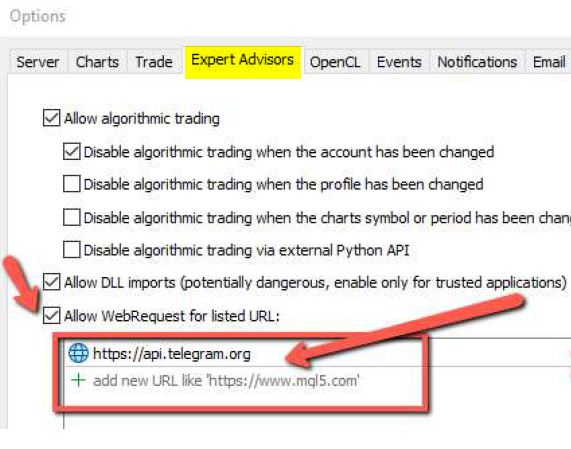
 Now go to Options, select Allow WebRequest for listed URL and add the following line https://api.telegram.org
 Now open a new chart in MT5 and drag and drop the EmogRemoteTLG to install it.
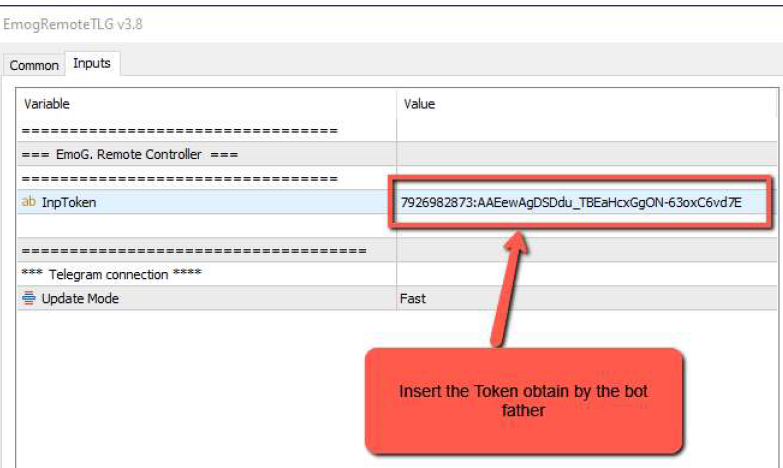
In the input tab insert the token obtain by the BotFather to connect the EmogRemoteTLG to your Telegram bot.
 Congratulations, your telegram is now connected to EmogRemoteTLG.
Type /start or /help to start interacting with the bot and monitoring EmoGuardian, without the need to access the VPS.
Congratulations, your telegram is now connected to EmogRemoteTLG.
Type /start or /help to start interacting with the bot and monitoring EmoGuardian, without the need to access the VPS.
SETTING IN EMOGUARDIAN
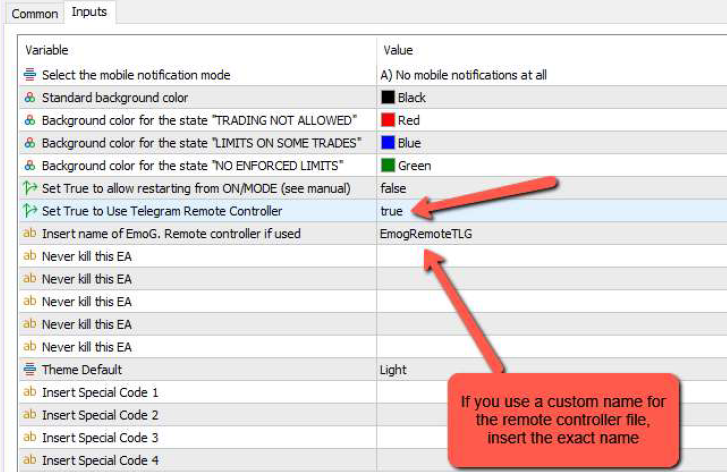
In order to make sure that EmoGuardian does not kill the remote controller if a risk parameter is triggered, make sure that in the input parameters:- Set “Use Telegram Remote Controller” to TRUE
- Insert the exact name of the remote controller file