

EmoGuardian offers two GUIs (Graphic User Interfaces):
Interactive GUI: This interface enables users to set risk options. Due to its graphical demands, we highly recommend switching to the Light GUI as soon as the risk parameters are configured and updated. Light GUI: Designed for monitoring risk management operations, this interface efficiently displays real-time EA operations and current parameters. To switch, simply click Hide the interactive panel button. Transitioning to the Light GUI is not mandatory but recommended to save RAM and CPU. EmoGuardian will work independently on the GUI that you decide to use.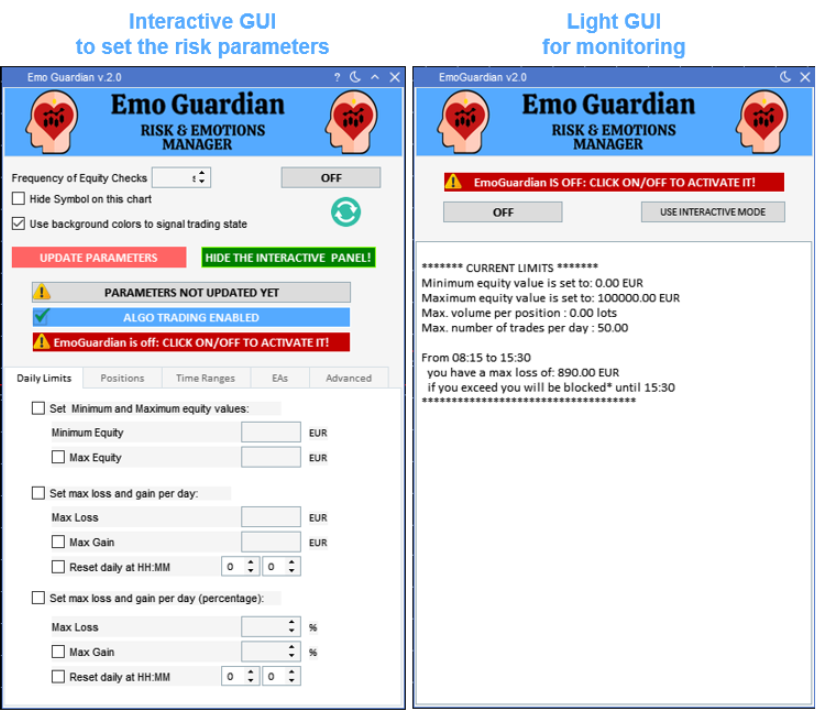
Interactive GUI
- Frequency of Equity Checks** box:** Allows you to specify how often you want to check your equity. A value of “1” will mean every 1 second, a value of “3” will mean every 3 seconds etc… the change in frequency checks will take place only after clicking on Update Parameters.
- Hide Symbol on this chart** checkbox:** If selected it will hide the graph that appears on the chart.
- Use background colors to signal trading state** checkbox:** If selected the state of trading will be signaled with a different background color. The colors used are those specified in the input parameters window when installing the EA. See some examples below.
- Update Parameters** button:** Once you click on it, the risk parameters that appear on the tabs Daily Limits, Position Limits, Time Range, EAs and Advanced Settings will be loaded on the EA and used to monitor the account. After clicking this button, EmoGuardian will conduct cross-check of all entered parameters to prevent any potential inconsistencies. During this check, any parameter value that will result in an immediate flattening of some positions will be flagged with a pop-up window. This safety feature will avoid inserting wrong parameters. When parameters are updated, they are automatically saved and used in the next installation of the EA.
- ON/OFF** button:** On the top right corner is used to turn on and off the EA. As for the Update Parameters button a check on parameters is performed before turning on the EA. Any inconsistency will result in a warning, and it will prevent the EA from being switched on.
- The refresh** button:** the circled symbol below on/off. When clicked, this symbol will display in the tabs sections the parameters currently used, that is the parameters that were successfully updated the last time. You can always restore the parameters currently in use by clicking the Refresh button.
- Hide The Interactive Panel!** button:** Used to switch from the Interactive GUI to the Light GUI. In the Light GUI you will have a similar button to switch back to the interactive panel at any moment.
- The three WARNING LABELS in the center: They warn the user about any issue. If everything is fine, no label should appear in red. The state of the EA is clearly shown on the third of the warning label in the center. If the EA is not ON it will be clearly signaled with a red warning label.
- The tabs _Daily Limits, Position Limits, Time Ranges_ etc. in which you can insert the risk parameters to be used. The number of tabs and parameters will probably increase with every update of the program. In the following sections each tab will be explained in detail.
- On the top bar you will see these 4 icons:
- The question mark is extremely useful to obtain a quick tip on what a button is for: just click on the question mark and then hover over a button to see some additional info.
- The moon sign allows to switch to a dark mode, once in a dark mode it will turn into a sun symbol. Clicking on the sun mode will go back to the default GUI color.
- The small arrow allows to reduce the GUI. Be careful this does not really reduce the resources consumption of the interactive GUI. The only way to reduce RAM consumption is to hide the interactive panel by clicking on the relative button.
- The X (close sign) will remove the EA from the chart.
Buttons explained
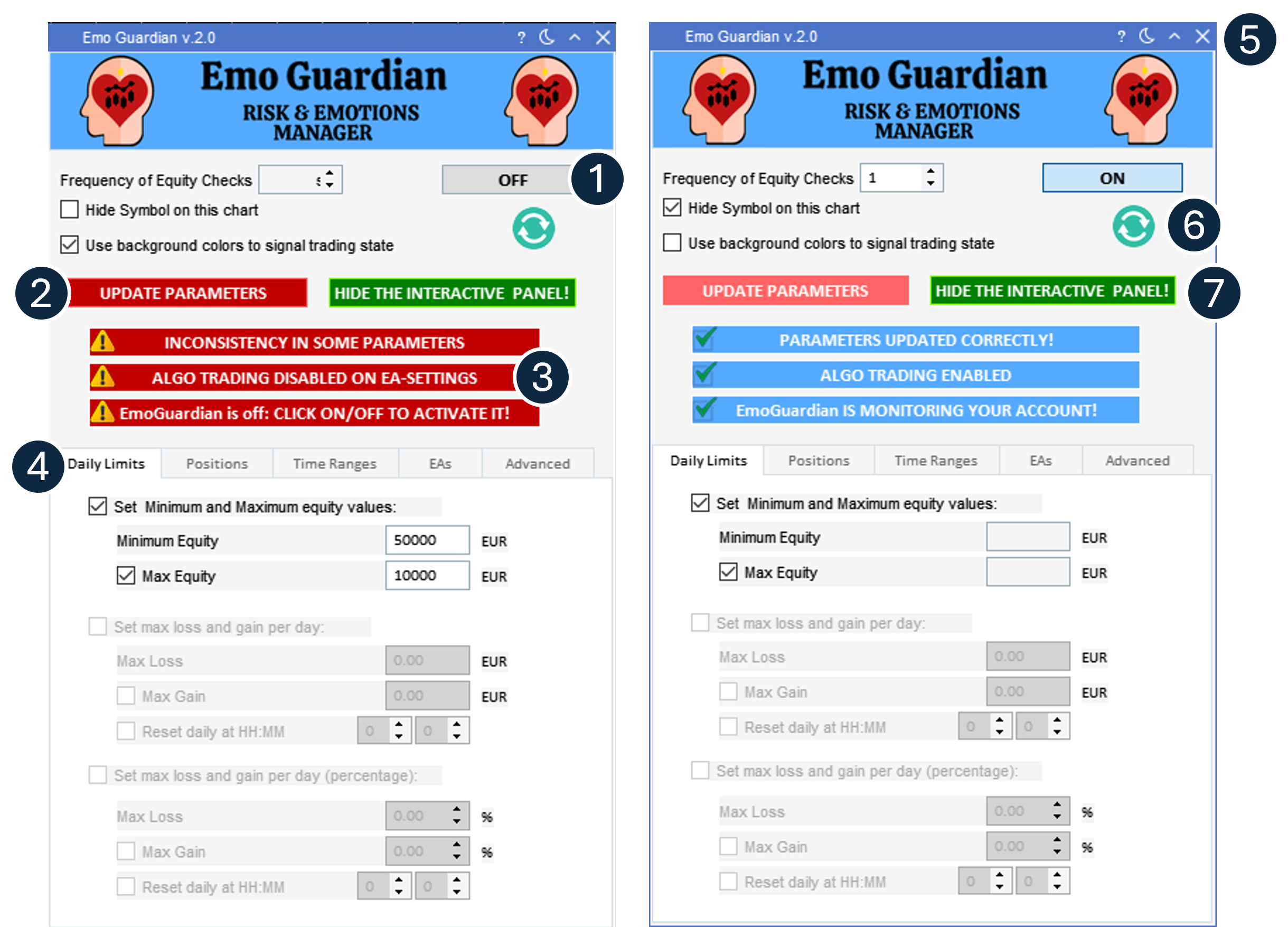
- Switch ON/OFF the EA.
- Load the parameters that appear on the GUI.
- Warning labels.
- Tabs to set different risk parameters.
- Tooltip (Question mark): click and hover over GUI elements to have some additional info Moon sign: click to use the dark theme.
- Refresh button: click to display on the interactive GUI the current parameters.
- Switch to the light GUI to save resources.