

Installation
1. Open the MT5 platform, in the top menu select the File tab > Open Data Folder. 2. In the open window, open the MQL5 folder. Copy EmoGuardian Demo application to the Experts folder.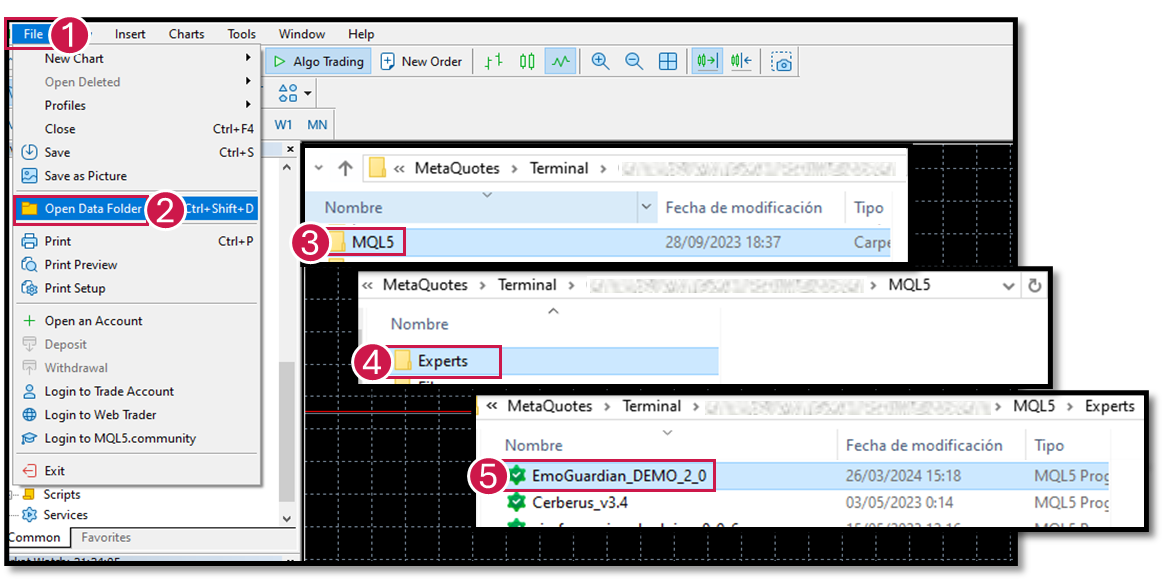 3. Refresh the list of Expert Advisors, right click on the Expert Advisors tab and Refresh.
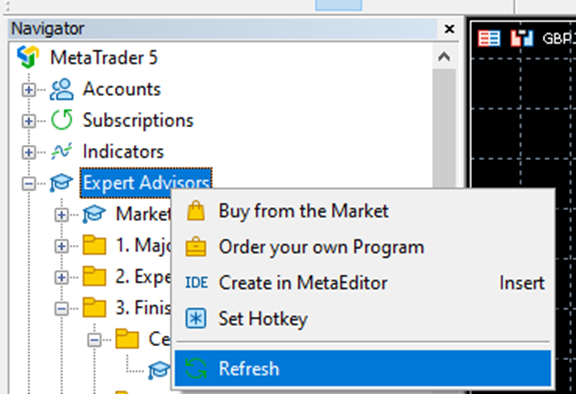
INSTALLATION ON THE CHART
1. Right-click on the application and select Attach to Graph.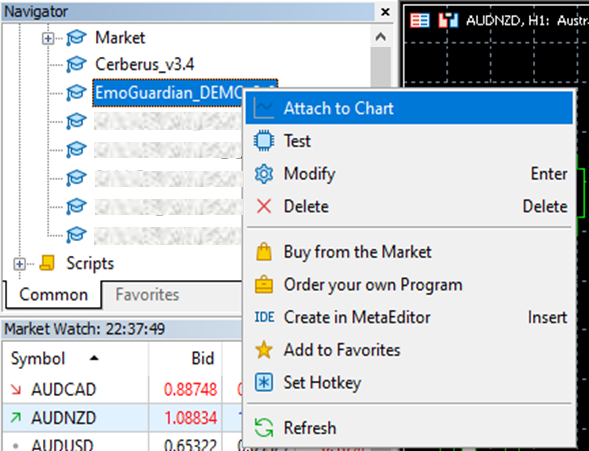 2. You can either click on Accept button or change the settings on the Inputs tab.
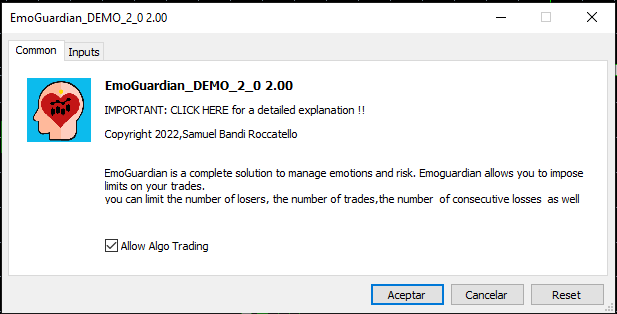 3. Inputs tab:
Settings Mobile Phone Notification Options
The notification options allow you to decide which notifications to receive on your mobile phone.
Any operation taken by EmoGuardian to reduce size, flatten trades, closing trades partially etc. is reported on the Light GUI, however it might be annoying to receive mobile notifications for every operation. Thus, you can choose these three options:
3. Inputs tab:
Settings Mobile Phone Notification Options
The notification options allow you to decide which notifications to receive on your mobile phone.
Any operation taken by EmoGuardian to reduce size, flatten trades, closing trades partially etc. is reported on the Light GUI, however it might be annoying to receive mobile notifications for every operation. Thus, you can choose these three options:
- Not receiving notifications at all.
- Receiving only Main notifications (these are notifications about reaching any level of min/max equity or min/max loss that appear on the “Daily Limits” tab or in the “Time Ranges” tab.
- Receiving all notifications.
4. Click on Accept button.
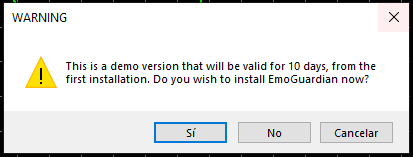
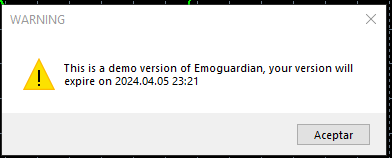
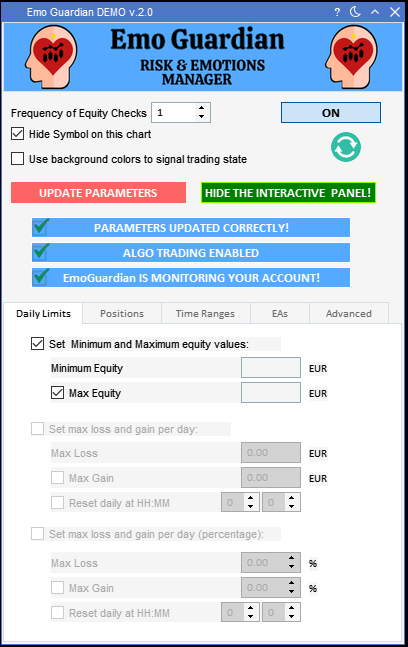
- Once accepted you should see the final version like this:
- Quickstart — Create your first site
- Editor basics — Learn the basics of GitBook
- Publish your docs — Share your docs online