

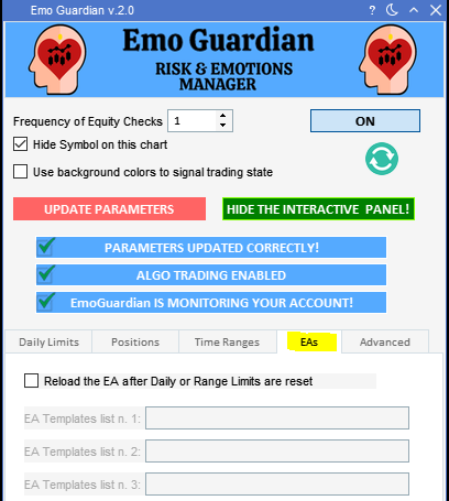
How to use this function:
1. Load the EA that you would like to reload any chart. 2. Right click on the chart and select “Save Template as”. 3. Create a template, save it in the folder MQL5>Files>EMOG_EA (see the image below and the video). 4. Repeat for all the EAs that you would like to load (for instance you can create TemplateA.tpl to load the EA_A, you can create Template_B.tpl for the EA_B …etc…). 5. Select the checkbox in the EA tab. 6. Insert the name of the Templates that contain the EA that you would like to load. If you wish to attach the EA to a specific symbol, use this notation: TemplateName.tpl!SYMBOL (i.e. Template_A.tpl!EURUSD to load EA_A to EUR/USD). If you do not need to specify any symbol, the EA will be attached to a random symbol. The templates need to be created only the first time, they do not need to be recreated and resaved every time. For the next use of the same template, you can just select the checkbox and specify the template name. If your EA has some specific settings (Input variables) these must be specified and saved when creating the template that will ‘host’ the EA. When you right click on the chart, and select Save Template option, you will be proposed the folder MQL5 > Profile > Template to save the template.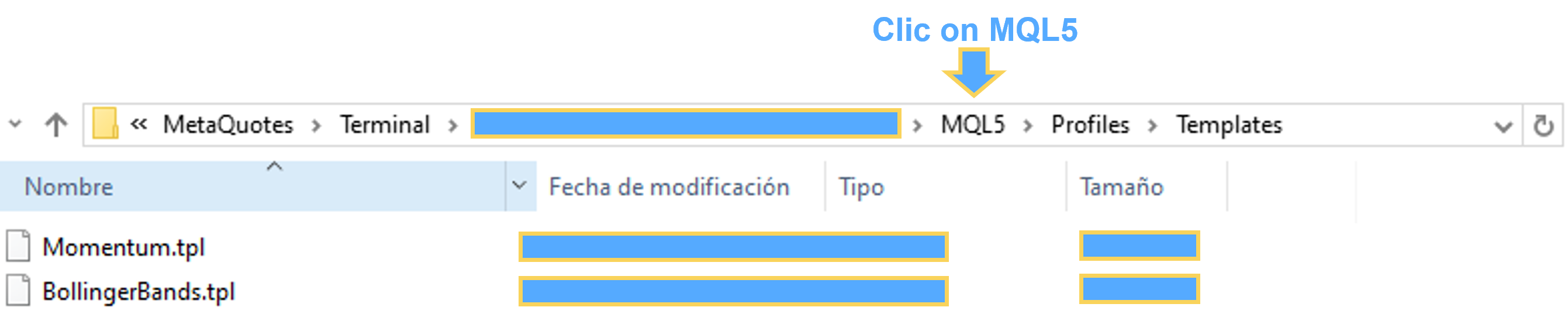 Click on MQL5 and select the folder MQL5 > Files > EMOG_EA instead and save the template there.
.png) As usual EmoGuardian will make sure that the template exists and that the notation used in the EA tab is correct, otherwise the user will be notified.
The procedure might seem complicated but after it’s understood the whole process takes (literally) 30 seconds. For more clarity, check the video below:
As usual EmoGuardian will make sure that the template exists and that the notation used in the EA tab is correct, otherwise the user will be notified.
The procedure might seem complicated but after it’s understood the whole process takes (literally) 30 seconds. For more clarity, check the video below: